Tech Support Pop-Up Scam: 'Call Microsoft or Apple' Warning Signs


Key Takeaways
- Pop-ups with phone numbers are always scams: Microsoft, Apple, and Google do not display phone numbers in browser warnings.
- The goal is remote access: Everything - the panic, the phone call, the "technician" - leads to installing remote control software.
- Your computer is probably fine: The pop-up is a web page, not a system alert. It has no access to your actual computer.
- Never call numbers from pop-ups: The person who answers is a scammer, not tech support.
- Gift cards are the red flag: Legitimate tech support never asks for payment in gift cards.
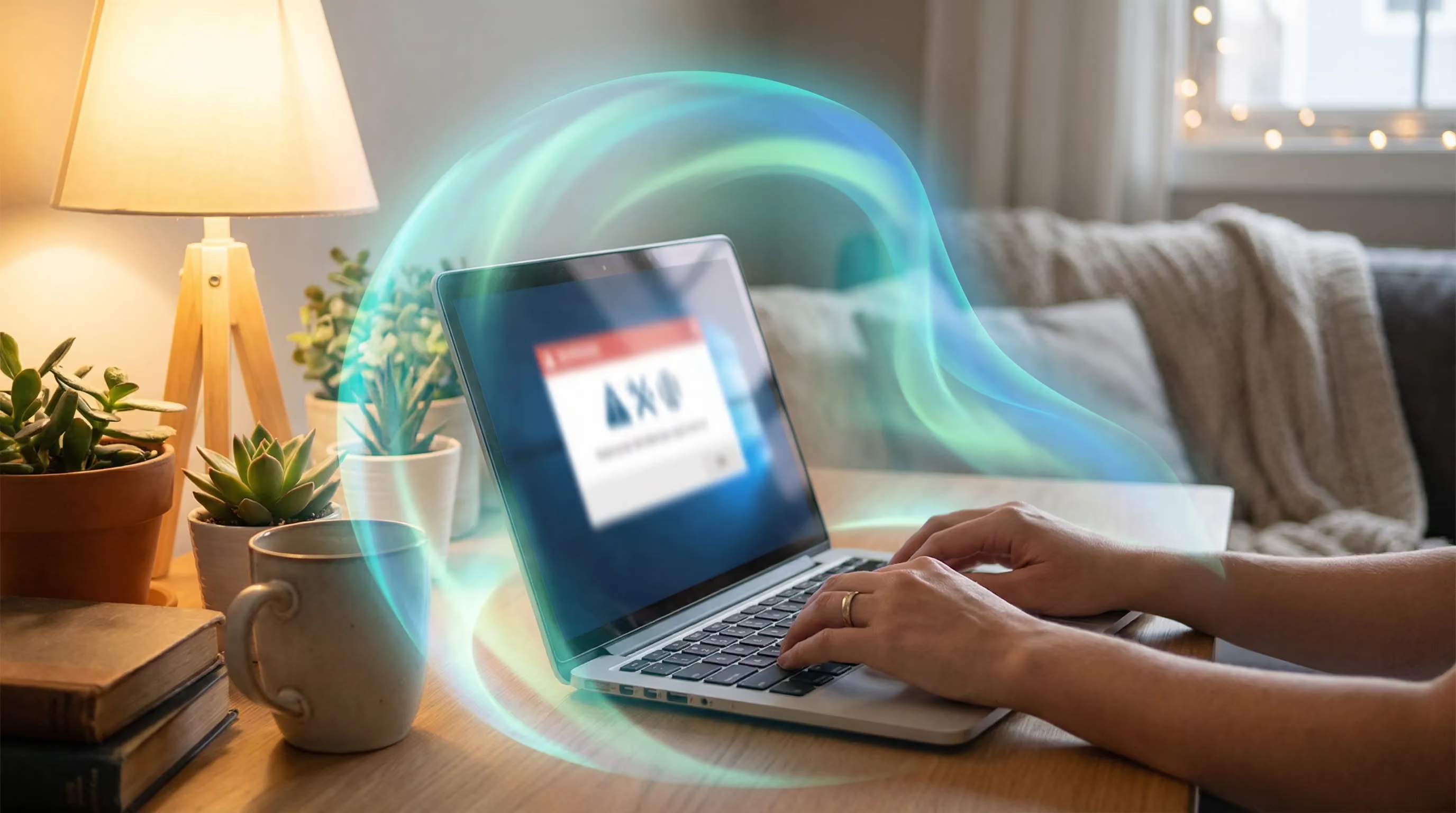
If a pop-up tells you to call Microsoft, Apple, or any tech company, do not. It is a scam. Close the tab (force quit if needed), clear your browser data, and verify through official support channels if you are concerned.
{{component-cta-custom}}
How Tech Support Scams Actually Work
A tech support scam is not really about technology. It is a social engineering attack that uses fear to get you on the phone, then manipulation to get you to install remote access software and pay for fake services.
The pop-up is just the hook. The real attack happens during the phone call, when a convincing "technician" guides you through installing software that gives them complete control of your computer.
The Scam Flow
| Stage | What Happens | What They Want |
|---|---|---|
| 1. The Pop-Up | Scary warning appears, often with audio. Browser may appear "locked." | Get you panicked and looking for help |
| 2. The Phone Call | You call the number. "Microsoft support" answers professionally. | Establish authority and trust |
| 3. The "Diagnosis" | They ask you to open Event Viewer or run commands that show normal logs. | Make you believe there is a real problem |
| 4. Remote Access | They ask you to install AnyDesk, TeamViewer, or similar software. | Get control of your computer |
| 5. The "Fix" | They run meaningless commands, then declare victory. | Justify the upcoming charge |
| 6. Payment | They demand payment - often $200-$500, sometimes via gift cards. | Monetize the scam |
| 7. Follow-up | Days or weeks later, another "technician" calls about a "refund" or "new problem." | Repeat the scam |
Real Tech Support Scam Scripts (And Why They Work)
Example 1: The Windows Security Alert
What the pop-up says:
"Windows Defender Alert: Your computer has been infected with Trojan spyware. Your passwords, banking details, and personal files are at risk. Do not restart your computer. Call Microsoft Support immediately: 1-888-XXX-XXXX"
Why people fall for it:
- "Windows Defender" is a real Microsoft product - it sounds official
- "Trojan spyware" is a real threat category
- The specific risks (passwords, banking) feel personal and urgent
- "Do not restart" creates a sense that any action could make things worse
- The phone number looks like a legitimate toll-free support line
Reality: This is a web page, not a system alert. It has no access to your computer. Windows Defender alerts appear in the system tray, not in browser pop-ups.
Example 2: The Apple Security Warning
What the pop-up says:
"Your Mac is infected with 3 viruses. System damage: 28.1%. Immediate action required. Call Apple Support: 1-800-XXX-XXXX to prevent complete system failure."
Why people fall for it:
- Mac users often believe they are immune to viruses, so a warning feels serious
- "28.1% system damage" is oddly specific, making it feel measured
- "Complete system failure" is scary
- The Apple branding looks legitimate
Reality: Apple does not display virus warnings in browser pop-ups. There is no such thing as "system damage percentage." This is a web page using Apple branding.
Example 3: The Browser Lock
What happens:
The browser appears frozen. Every attempt to close produces more pop-ups. Audio plays: "Your computer has been locked. Call this number immediately."
Why people fall for it:
- The browser genuinely seems unresponsive
- Multiple pop-ups create a sense of escalating emergency
- Audio makes it feel like the computer is talking to you
- The "locked" framing suggests you need help to unlock it
Reality: The browser is not locked - it is running JavaScript that spawns pop-ups. Force quitting the browser ends it immediately.
What Happens If You Call
The person who answers sounds professional. They may have an American accent (or may not). They will follow a script designed to:
- Establish authority: "This is Microsoft Technical Support" or "Apple Security Center"
- Confirm the "problem": They ask you to open Event Viewer (Windows) or Console (Mac), which always shows normal errors they can misrepresent as threats
- Get remote access: They guide you to download AnyDesk, TeamViewer, or another remote access tool
- Demonstrate "threats": They run commands that show normal system information, claiming these are viruses
- "Fix" the problem: They run meaningless commands or install their own software
- Demand payment: $200-$500 is common, often via gift cards or wire transfer
What They Actually Do With Remote Access
| Action | What It Looks Like | Real Purpose |
|---|---|---|
| Browse your files | "Checking for infected files" | Looking for banking info, passwords, sensitive documents |
| Run commands | "Removing viruses" | Nothing meaningful - pure theater |
| Install software | "Security tools" | Backdoor access for future scams |
| Access banking sites | "Verifying your accounts are safe" | Capturing login credentials |
| Request refund access | "Processing your refund" | Trick you into thinking they deposited too much, then "return" money |
If You Already Called or Gave Remote Access
Immediate Steps
- Disconnect from the internet: Unplug ethernet or disable WiFi. This cuts their access immediately.
- Uninstall remote access software: Remove AnyDesk, TeamViewer, LogMeIn, or any unfamiliar programs they had you install.
- Run a legitimate security scan: Use Windows Defender, Malwarebytes, or your existing security software.
- Change your passwords from a different device: Assume any passwords saved in your browser or typed during the session are compromised.
Account Security
- Change passwords for email, banking, and any sensitive accounts
- Enable two-factor authentication everywhere possible
- Check for unauthorized transactions or login activity
- Review your email for password reset requests you did not make
- Check for email forwarding rules that may have been added
If You Paid
- Contact your bank or credit card company immediately
- If you paid with gift cards, contact the gift card company (recovery is unlikely but worth trying)
- Document everything: phone numbers, amounts, what software was installed
- Report to the FTC at ReportFraud.ftc.gov
- File a report with your local police if significant money was lost
{{component-tips}}
How Guardio Stops Tech Support Scams
Tech support scam pages often arrive through malicious ads (malvertising) or compromised websites. Guardio provides protection before you see the scary pop-up:
- Malicious ad blocking: Many tech support scams are delivered through advertising networks. Guardio blocks the malicious redirects that lead to scam pages.
- Known scam page detection: Guardio maintains a database of known tech support scam domains and blocks them before they load.
- Behavioral detection: Even new scam pages exhibit patterns - fake security alerts, phone numbers in browser windows - that Guardio recognizes.
- Redirect chain analysis: Scam pages often use multiple redirects to evade detection. Guardio follows the chain and evaluates the final destination.
{{component-cta-custom}}
How to Get Legitimate Tech Support
| Company | Official Support | Never Trust |
|---|---|---|
| Microsoft | support.microsoft.com | Pop-up phone numbers, incoming calls claiming to be Microsoft |
| Apple | support.apple.com or Genius Bar | Browser warnings with phone numbers |
| support.google.com | Anyone calling about "your Google account" |
Report Tech Support Scams
- FTC: ReportFraud.ftc.gov
- Microsoft: Report a tech support scam
- Apple: Report phishing
- Your browser's "Report suspicious site" feature
Sources
FAQs
Are pop-ups with phone numbers real?
Be cautious. Legit browser warnings generally do not require you to call a number from a pop-up. Verify through official support channels.
What if I already called and gave remote access?
Disconnect, remove remote tools, run a trusted scan, change passwords, and monitor accounts for unusual activity.
Should I reinstall my browser?
Sometimes a reset helps, but start by closing the tab and scanning. Avoid downloading random cleanup tools.
What if I paid the scammer?
Contact your payment provider quickly. Keep documentation and report the fraud.
Can Guardio help reduce these risks?
Guardio can help block malicious sites and warn you about risky pages before you interact.
How do I close a stuck pop-up?
Close the tab, force quit the browser, or restart your device if needed. Do not click buttons inside the pop-up.

 Phishing Scams
SMS Phishing Explained: How to Spot Smishing and Stay Safe