Malicious iPhone Configuration Profiles: How to Find and Remove One


Key Takeaways
Your iPhone is a locked-down fortress by design. Apple's App Store vetting, app sandboxing, and regular security updates make it hard to compromise. But there's a door most people don't know exists, and attackers do.
It's called a configuration profile, and a malicious one can give a stranger a surprising amount of control over your device without ever touching the App Store. It can reroute your traffic and add certificates, and if it enrolls your phone in a device management system, it may also be able to install apps or erase the device.
What is an iPhone configuration profile?
A configuration profile is a small XML file (you'll sometimes see it listed as a .mobileconfig file) that tells your iPhone how to behave. IT administrators at schools, hospitals, and companies use them all the time to push settings to devices at scale, things like Wi-Fi passwords, VPN configurations, email accounts, and app restrictions.
Apple describes them as XML files, ending in .mobileconfig, that configure settings, accounts, restrictions, and credentials, and that's exactly right. When a legitimate profile is on your phone from your employer, it might enforce a passcode policy or connect you to the company VPN automatically. It is common to encounter settings on your iPhone that have been locked or pre-configured by a profile without giving it much thought.
The problem is that this same mechanism works just as well in the wrong hands. Knowing how to protect your phone from threats like this starts with understanding what you're up against.
How do attackers use configuration profiles against you?
A malicious profile doesn't need to exploit a software vulnerability. It usually just needs you to approve it.
Attackers slip them onto devices in a few common ways:
- Phishing websites. A fake page prompts you to install a profile to "fix" a problem, access exclusive content, or complete a download. You tap through the prompts, and the profile installs.
- Fake apps and sites. Some unofficial app stores and fake jailbreak sites have prompted people to install a profile to make an app or tool work. Trend Micro documented one such fake jailbreak site that downloaded a profile it marked as non-removable, though the user still had to approve it.
- Physical access. If someone can unlock your phone, they can install a profile directly in a matter of minutes. This is one way stalkerware scenarios can begin.
- Malicious Wi-Fi networks. Researchers have demonstrated that a spoofed network's captive portal can prompt you to install a profile, although you still have to approve it.
Once installed, a malicious profile can route your internet traffic through a VPN an attacker controls and change your DNS settings so that even safe URLs can point to harmful sites. It can also add a certificate, although Apple says a manually installed root certificate isn't trusted for secure connections until you also turn on full trust for it in Certificate Trust Settings. If the profile enrolls your phone in a rogue Mobile Device Management (MDM) system, the attacker may also be able to install apps and, in some cases, lock or erase the device. In 2018, Cisco Talos documented a campaign that enrolled iPhones in India in a malicious MDM server and used it to push trojanized versions of apps such as Telegram and WhatsApp. Talos said each step needed some form of user interaction, most likely social engineering.
Unlike spyware apps, a profile doesn't need to hide. It sits inside Settings, where it can look like something routine.
Warning signs a profile on your phone might be malicious
Not every configuration profile is a threat. Your workplace or school may have installed one legitimately. But certain signs point toward something suspicious.
Check for these red flags:
- You don't recognize the organization name listed in the profile
- You can't remember agreeing to install it
- Your internet traffic feels slower than usual or you're being redirected unexpectedly
- Unfamiliar apps appeared on your phone that you didn't download
- Your data usage spiked for no obvious reason
- A profile you don't recognize can't be removed
None of these signals is conclusive on its own, but two or more together is a good reason to check your profiles right now.
How to check for configuration profiles on your iPhone
This takes about 30 seconds.
- Open Settings
- Tap General
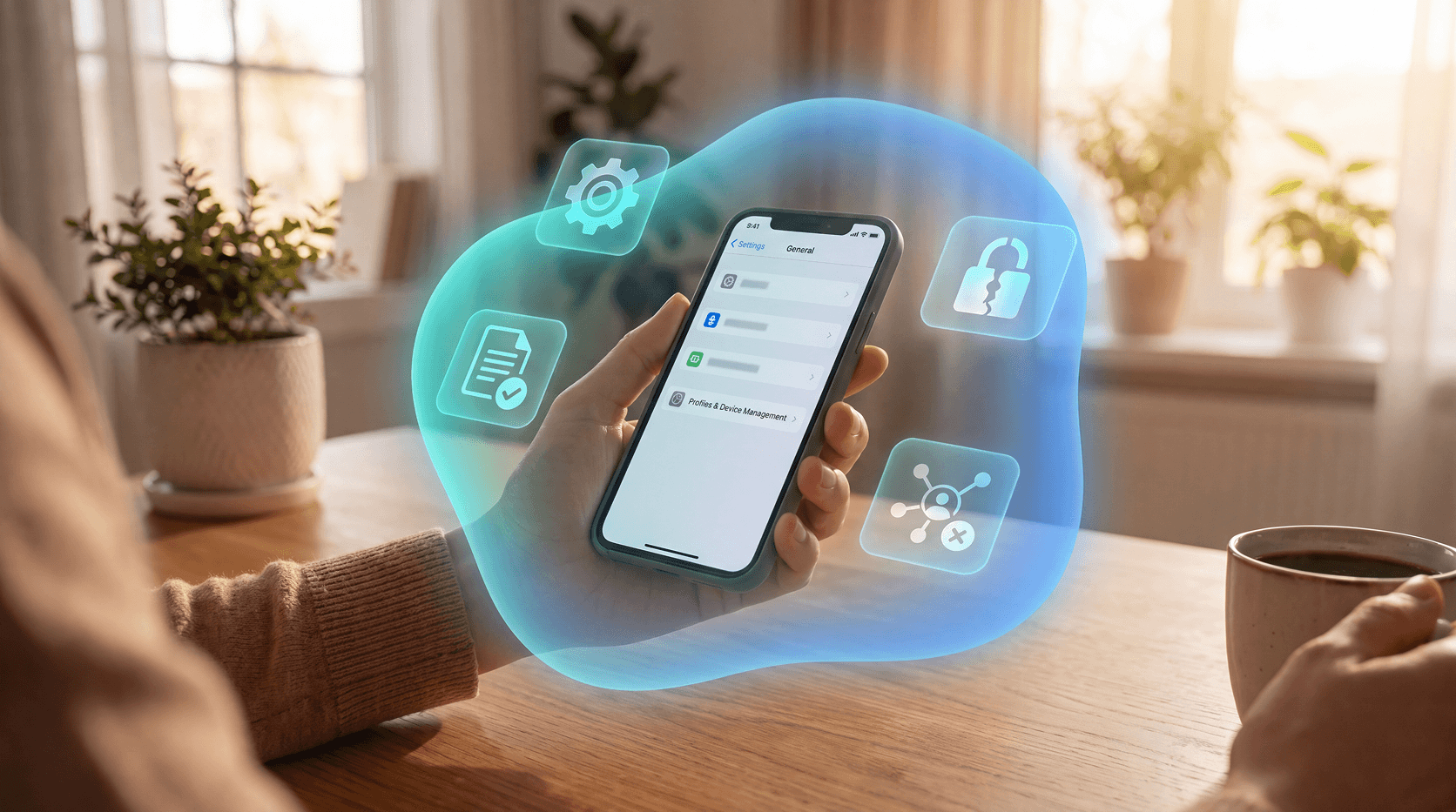
- Scroll down and tap VPN & Device Management
If no profiles are listed, no device management profiles are installed, which is the ideal outcome for a personal phone. Apple's Personal Safety guide describes the same steps.
If you do see one or more profiles listed, tap each one. You'll see details about who it came from and what it configures. Ask yourself: do I know this organization? Did I agree to this? If the answer to either is no, it should come off your device.
Checking this list every so often is a good habit for any personal iPhone user, especially after someone else has had access to your unlocked phone.
How to remove a malicious configuration profile
Removing a profile takes a few taps, and Apple says doing so deletes the settings, apps, and data associated with it.
- Go to Settings > General > VPN & Device Management
- Tap the profile you want to remove
- Tap Delete Profile (some iOS versions label it Remove Profile)
- Enter your device passcode if prompted
- Confirm the removal
That's it. The profile, along with any settings or restrictions it applied, is gone.
One important note: you may not be able to delete a profile, depending on who installed it. Some profiles are installed by management systems that lock them against removal. If you're on a work or school device and the option is greyed out or missing, contact your IT administrator. If it's your own phone and you can't remove a profile you don't recognize, treat that as a red flag and contact Apple Support. Erasing the phone (Settings > General > Transfer or Reset iPhone > Erase All Content and Settings) is the usual next step for a personal phone, but if it was ever owned by a school or employer, ask them first.
What to do after removing the profile
Removing the profile is the right first step, but it's worth taking a few more minutes to check for anything it left behind.
- Review your installed apps. Go to Settings > General > iPhone Storage and look for apps you don't recognize or didn't install.
- Reset Safari. If your browser was acting strangely, go to Settings > Apps > Safari and tap Clear History and Website Data.
- Check your VPN settings. Go to Settings > General > VPN & Device Management > VPN and remove any VPN configurations you didn't set up yourself.
- Check certificate trust. Go to Settings > General > About > Certificate Trust Settings and turn off full trust for any root certificate you don't recognize.
- Update iOS. Go to Settings > General > Software Update and install any available updates. A patched OS is a harder target.
- Change your Apple Account password. If you suspect the profile gave someone access to your account, changing your password and reviewing your trusted devices is a smart move. Go to Settings > [your name] > Sign-In & Security.
How to avoid malicious configuration profiles going forward
The clearest rule here: only install a configuration profile if you know exactly who sent it and why.
Legitimate organizations, your employer, your school, your VPN provider, will explain what their profile does before asking you to install it. They won't normally ask you to install one through a pop-up on a random website or as a condition of downloading a free app.
A few habits that help:
- Don't install apps from outside the App Store unless you have a specific, trusted reason to do so
- Treat any website that prompts you to install a profile as suspicious by default
- Keep iOS updated, since updates patch security flaws attackers can use
- If someone else had physical access to your unlocked phone, check your profiles when you get it back
- Use a tool that blocks you from reaching phishing sites before the profile prompt ever appears
Conclusion
A malicious configuration profile usually depends on you approving it, so the most useful defense is a habit: pause on any prompt to install one, check VPN & Device Management every so often, and remove anything you don't recognize. If a profile won't come off a personal phone, get help before erasing it.
Guardio doesn't scan your iPhone for configuration profiles, but it covers a related risk. Browsing protection on your computer and phone blocks phishing and scam sites before they open and explains why, which can stop fake pages that prompt you to install a profile, and Email Security flags phishing emails that get past the Gmail spam filter. On iPhone, the Text Message Filter sends malicious texts to junk. No tool catches everything.
Get a free security scan with Guardio today and stay protected.
FAQs
Can an iPhone get a virus from a configuration profile?
A configuration profile isn't a virus, but it can do things that feel just as damaging. A malicious profile can reroute your traffic and change your DNS settings. If it enrolls your phone in a rogue MDM system, an attacker may also be able to install apps and, in some cases, lock or erase the device.
What happens when I remove a configuration profile?
Removing a configuration profile also removes all the settings, restrictions, and managed apps that came with it. Your device reverts to its previous state for those settings.
Can someone install a configuration profile on my iPhone without me knowing?
Not normally. Installing a profile usually needs your approval, either through a prompt on a website or app, or by someone with access to your unlocked phone. The exception is a phone already enrolled in a device management (MDM) service, where the administrator can push more profiles without asking you. That's why attackers rely on social engineering to get you to tap "Allow" in the first place.
What if I can't remove a configuration profile on my personal iPhone?
If the option to delete a profile is greyed out or missing on a personal device, the profile may have been installed by a management system that locks it against removal. Treat an unrecognized profile you can't delete as a red flag and contact Apple Support. Erasing the phone via Settings > General > Transfer or Reset iPhone > Erase All Content and Settings is the usual next step, but if the phone was ever owned by a school or employer, contact them first.
Does Apple protect against malicious configuration profiles?
Apple requires you to approve a profile before it installs, and profiles can be signed to validate where they came from. But if a user approves the prompt, the system allows it, and a phone already enrolled in a management service can receive more profiles without asking. The protection is the awareness of what you're agreeing to.